Are you still relying on the vi or vim editor as a Linux admin when scripting in Bash, Ansible, or Python? It might be worth considering a shift to Visual Studio Code, the widely acclaimed IDE. Visual Studio Code offers a plethora of extensions that can greatly simplify the coding process. Instead of installing Visual Studio Code directly on your Linux development machine, a more efficient approach is to install it on your Windows machine. You can then utilize the Remote-SSH extension to seamlessly connect to any of your development servers.
In this post, I’ll walk you through the process of connecting to your Linux server using the Remote-SSH extension and then demonstrate how you can enhance your Bash coding experience by incorporating the Bash-IDE extension.
Step1: Download and install Visual Studio Code from Microsoft, and upon completion of the installation, launch the application to access the following screen:

Step 2: Install the Remote-SSH extension. Access the EXTENSIONS search by pressing CTRL+Shift+X. Look for “Remote-SSH” and proceed to install it.
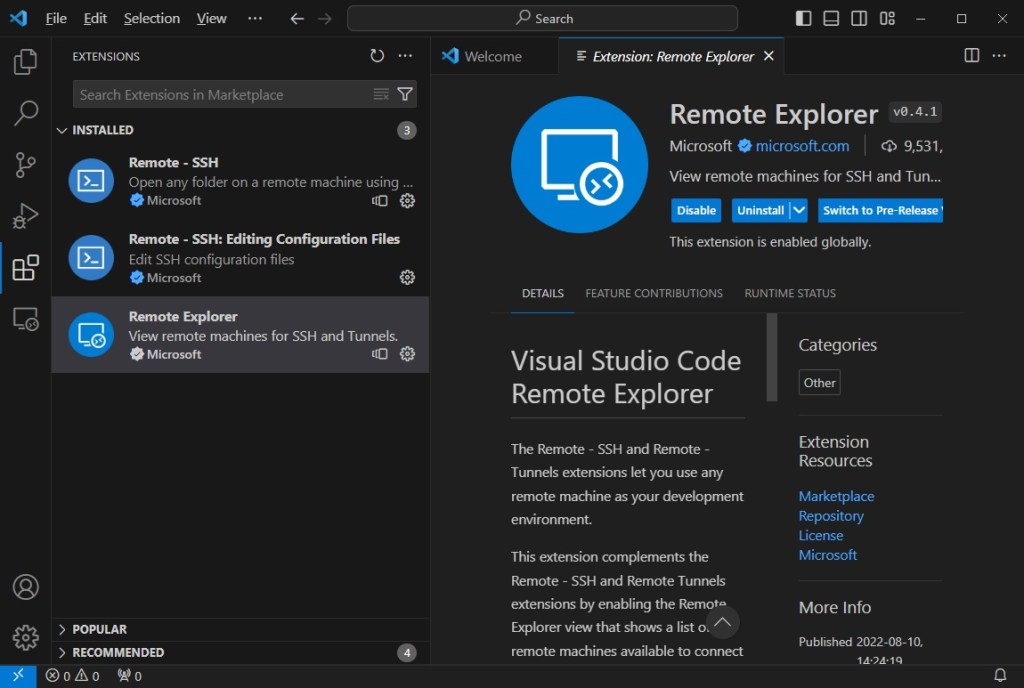
Step 3: Establish a password-less connection between the PC and the remote Linux host as demonstrated below:
- On Windows PowerShell, run
ssh-keygen.exewith default values to generate the SSH keys. Usescpto copy the public key (id_rsa.pub) to the remote host - On the remote Linux system, ensure the existence of the
.ssh/authorized_keysfile in the user’s home directory. If it doesn’t exist, create it, and then append the contents ofid_rsa.pubto it. - Set permissions for the
.sshdir to 700 and for theauthorized_keysfile to 600
Step 4: Add the remote Linux host to VS Code
- Access the Command Palette by pressing CTRL + SHIFT + P
- Execute the command by entering “> Remote SSH: Add New SSH Host”.
- Enter the SSH command to connect, ex: root@192.168.1.110, if connecting as root.
- Store the host information in “.ssh/config” under the user’s home directory
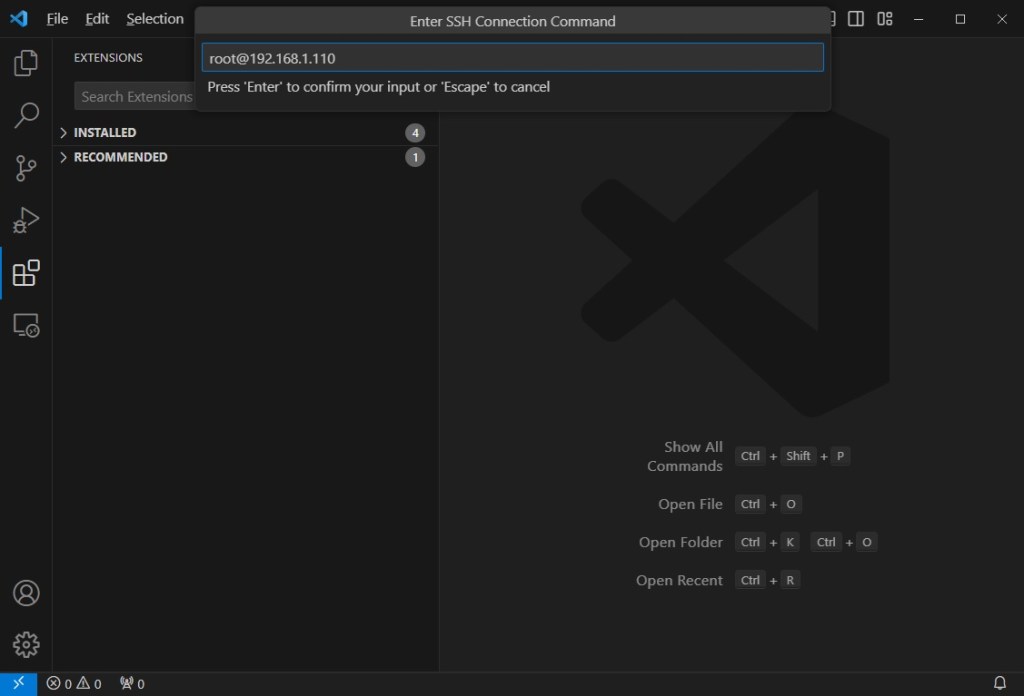
Step 5: Connect the remote Linux host from VS Code
- Access the Command Palette by pressing CTRL + SHIFT + P.
- Execute the command “> Remote SSH: Connect to Host…” and choose the host from the list. A shortcut is to click on the blue icon in the bottom left corner.
A new window will open upon connecting to the remote Linux host.
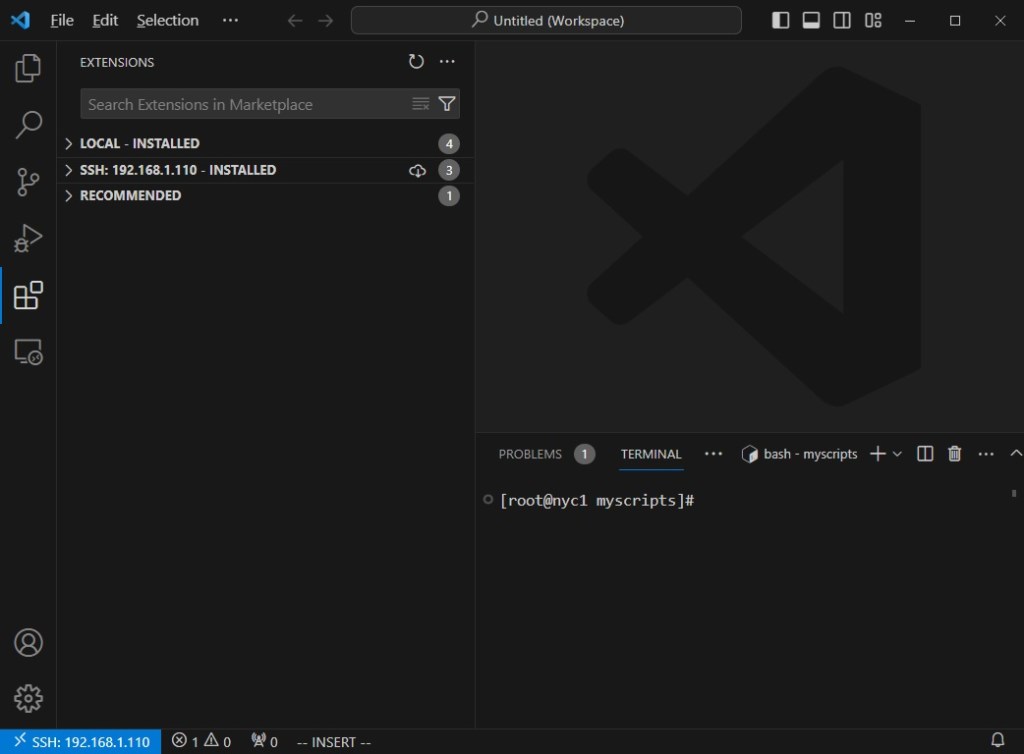
 LinuxStorageVMware